
How-To
Transfer eSIM to New iPhone From Android: Travel eSIM Guide
In most cases, you cannot move an installed travel eSIM from an Android phone to a new iPhone. The safe approach is to install a fresh eSIM on the iPhone. The one narrow exception is a main-line carrier eSIM that supports cross-platform transfer, so this guide shows when you can transfer eSIM to new iPhone from Android and what to do when you cannot.
Can You Transfer eSIM to New iPhone From Android?
Sometimes, but only for certain carrier lines. Apple's support page says the Android-to-iPhone eSIM transfer needs iOS 26 or later on the iPhone and Android 16 or later on the old phone. Both phones need Wi-Fi and Bluetooth, and the network provider must support the feature. The SIM on the Android phone deactivates during the transfer (Apple Support).
That describes a primary mobile line. A travel data plan is a different product, so do not assume it qualifies. Check your plan details and setup email, and treat a fresh install as the default.
| Item | Can it move? | What to do |
|---|---|---|
| Home carrier eSIM (main line) | Possibly, if carrier and software versions support it | Look for the transfer option during iPhone setup, or ask your carrier |
| Travel eSIM already installed on Android | Usually not | Keep it in place until you have a confirmed replacement |
| Travel eSIM bought but not installed | Nothing to move | Install it directly on the iPhone |
| Chats, photos, contacts | Yes, with app or phone tools | Back up and move before you travel |
These requirements change with software releases, so check Apple's page again before you switch.
Why a Travel eSIM Profile Is Tied to One Device
An eSIM is not a file you copy like a photo. A provider's server sends a profile to a chip inside your phone, called an eUICC, using an activation code or QR code. The GSMA describes this download-and-install model in its guide to eSIM architectures.
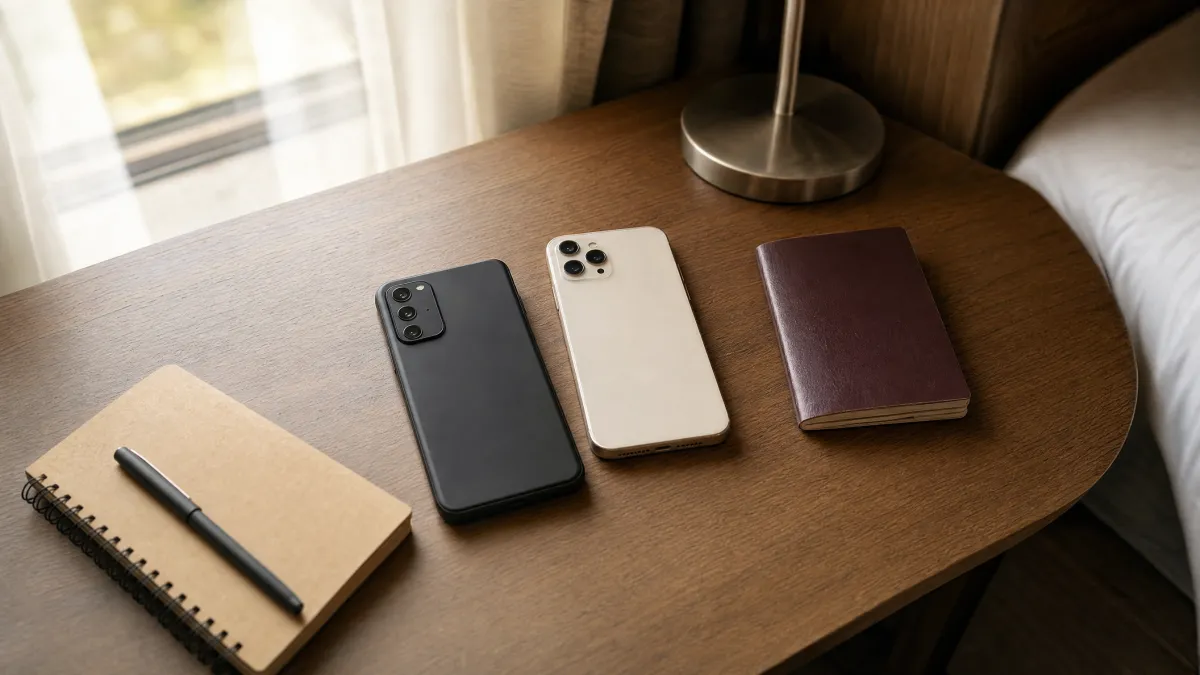
Once the profile sits on one chip, the provider may not be able to send the same one to another phone, depending on the plan. A second install can need a new activation, and some codes work only once. Do not assume a QR code can be reused after a successful install or a failed attempt.
If you already deleted a plan by mistake, see our guide on reinstalling a deleted travel eSIM.
What to Do If Your Travel eSIM Has Not Been Installed Yet
This is the easiest case. A purchased plan that is not installed is not tied to any phone yet. Keep the QR code and activation details private, and install them directly on the new iPhone.
- Confirm the iPhone supports eSIM and is carrier-unlocked.
- Connect the iPhone to reliable Wi-Fi.
- Open your eSIM.site order email or account page and follow the plan's own instructions.
- On the iPhone, go to Settings > Cellular (or Mobile Service) > Add eSIM, then scan the code.
- Label the line "Travel" so you can tell it apart from your home line.
Our iPhone eSIM activation guide covers each model in more detail. Labels differ by model and software version, so menu names may vary slightly on your phone.
Check when validity starts
Some plans start counting days when you install the eSIM. Others start on the first connection in the destination. This varies by plan, so read the plan details before you install. Installing before departure over Wi-Fi is still wise, because you can fix problems at home.
Check your phone before buying a new plan
Before you buy anything for the new phone, run the eSIM compatibility checker. Then confirm the iPhone is carrier-unlocked. Our guide on using a travel eSIM on a locked iPhone explains what a lock can mean.
Transferring eSIM From Android to iPhone: Common Problems and Fixes
Work through the problem that matches what you see on screen.
The iPhone shows no transfer option for your travel plan
A likely cause is that the plan is not a carrier line that supports cross-platform transfer, or the software is too old. Update both phones, then check your plan details. If the option is missing, Apple says to contact the network provider, who can activate the eSIM or send a QR code (Apple Support). For a travel plan, that means asking eSIM.site support about a new installation.
The Android travel eSIM does not appear on the iPhone
The profile lives on the Android chip and never left it. Leave it there. Do not delete it hoping it will "free up" the plan. Confirm the next step first, and read our guide to moving an eSIM to a new phone mid-trip.
The QR code fails on the iPhone
Possible causes: the code was already used, the iPhone is offline, or the plan expired. Connect to Wi-Fi, retry once, and then contact support with your order number. Repeated attempts may use up an activation. For more fixes, see what to do when an eSIM transfer is not working.
The plan is installed but there is no data
The wrong line may be selected for cellular data, or roaming may be off for the travel line. Use the iPhone steps below, and read which line should have data roaming on.
How to Avoid Losing Data on a Plan That Is Already Active
If a plan is active on your Android, the main risk is deleting it too early. Google's help pages treat erasing an eSIM as a separate action from turning it off (Google Pixel Help). Assume deletion cannot be undone from your side.
- Do not delete, erase or factory reset the Android until the iPhone has working data and eSIM.site has confirmed the next step.
- Record the plan name, order or reference number, destination, validity window, activation date and any data balance shown.
- Note the EID and IMEI of both phones. On iPhone, find them in Settings > General > About. On Android, look under Settings > About phone.
- Finish the trip on the Android if few days remain and your plan cannot move.
- Ask support first if you need a replacement mid-trip, and say how much data you have left.
Whether unused data can carry over to a new install depends on the plan. Do not count on it unless the plan details say so.
Checklist Before You Switch From Android to iPhone

- Back up chats. WhatsApp and other apps publish their own steps for moving history between Android and iPhone. Follow those instead of guessing.
- Save plan details. Take notes or screenshots of your order, plan name and validity.
- Keep Wi-Fi access. You need it to install the eSIM and for any account verification.
- Update both phones. A transfer, if available, needs current software.
- Charge both phones and keep them close together.
- Keep your home line active for calls, texts and bank codes.
- Do not remove the old eSIM until the new phone works.
iPhone steps for the new phone
- Go to Settings > Cellular (or Mobile Service).
- Under SIMs, tap the travel line and turn it on.
- Set Cellular Data to the travel line.
- Open that line's settings and turn Data Roaming on.
- Leave Data Roaming off for your home line to avoid roaming charges.
Android steps for the old phone
- Go to Settings > Connections > SIM manager, or Settings > Network & internet > SIMs.
- Review which lines are on and note the travel plan's name.
- Turn the line off only if you need to avoid overlap. Do not tap delete or erase.
Menu names differ by brand and Android version.
Setting Up a Fresh eSIM on the New iPhone
Choose a fresh eSIM install when your current plan is unused, nearly finished, or cannot be confirmed as movable. Pick a plan for the country you are visiting, not a generic one. Start from the list of eSIM destinations and open your destination page.
If your trip covers several countries or you have not settled on a route, a Global plan may fit. Check each plan's countries, validity and features before you buy.
How much data will you need?
Plan details list the data amount, so match it to how you use your phone. This table shows relative use only. It is not a measured figure, and real use varies by app settings and video quality.
| Activity | Relative data use |
|---|---|
| Messaging (text) | Low |
| Maps and navigation | Low to moderate |
| Social media scrolling | Moderate to high |
| Video calls | High |
| Video streaming | Highest |
Hotspot sharing, speeds, top-ups and whether a plan includes a phone number depend on the plan. Check the plan details before you buy.
Frequently Asked Questions
How do I transfer eSIM from Android to iOS?
For a supported carrier line, use the transfer option offered during iPhone setup, with both phones on Wi-Fi and Bluetooth. Apple lists iOS 26 and Android 16 as minimums, and the carrier must support it. For a travel eSIM, install a fresh plan on the iPhone instead.
Can you transfer eSIM from iPhone to Android?
Yes, but only on a similarly narrow path. It needs compatible software and a supported carrier, with transfer offered during Android setup or started from iPhone settings (Apple, Google). Neither direction works for every plan, so be ready to install a new eSIM.
Will my travel eSIM work on the iPhone if I scan the same QR code?
Do not count on it. Many activation codes work for one install, and a second scan may fail. Contact eSIM.site support with your order number before you try again.
Is it safe to delete the eSIM on my Android before setting up the iPhone?
No. Wait until the iPhone has working data and support has confirmed your next step. Deleting a profile may be permanent from your side, and you could lose the remaining data.
Will switching phones reset my plan's validity or data balance?
That depends on the plan. Some plans start counting when you install, and others on first connection abroad. A fresh install may not carry over unused data, so check the plan details first.
Do I need an unlocked iPhone for a travel eSIM?
A carrier-locked iPhone may refuse a travel eSIM, so check the lock status with your carrier. The phone must also support eSIM. Use the compatibility checker, and see our guide on locked iPhones and travel eSIMs if you are unsure.