
ESIM Guides
How to Transfer eSIM From One Phone to Another: Travel Plans
If you have not scanned your travel eSIM QR code yet, install it on the new phone and you avoid the transfer problem, as long as that phone supports eSIM and is carrier-unlocked. If the eSIM is already installed, do not count on the phone's transfer menu to move it. This guide explains how to transfer eSIM from one phone to another when it is possible, and what to do when it is not.
How to Transfer eSIM From One Phone to Another: The Short Answer
An installed eSIM.site travel eSIM is tied to one device, according to the eSIM.site installation FAQ. The built-in iPhone and Android transfer tools should not be relied on to move it.
Apple and Google both offer eSIM transfer features. Each works only when the plan provider supports it. A transfer option in your new phone's settings does not prove your travel plan can move. See Apple's eSIM transfer guide and Google's Pixel eSIM transfer page for the conditions.
Use this simple decision tree:
- QR code never scanned: install it on the new phone.
- Installed, and your order instructions explicitly allow transfer, reinstall or replacement: follow those instructions and keep the old phone intact until they are done.
- Installed, and no such permission exists: do not rely on the phone's transfer menu. Contact support before you remove anything.
To reach support, use the contact details in your order email. Have your order ID ready.
Why Most Travel eSIMs Are Tied to One Install
Each eSIM.site activation code installs once, on one phone. After that, the eSIM profile belongs to that device. If you delete the profile, the same code cannot add it again.
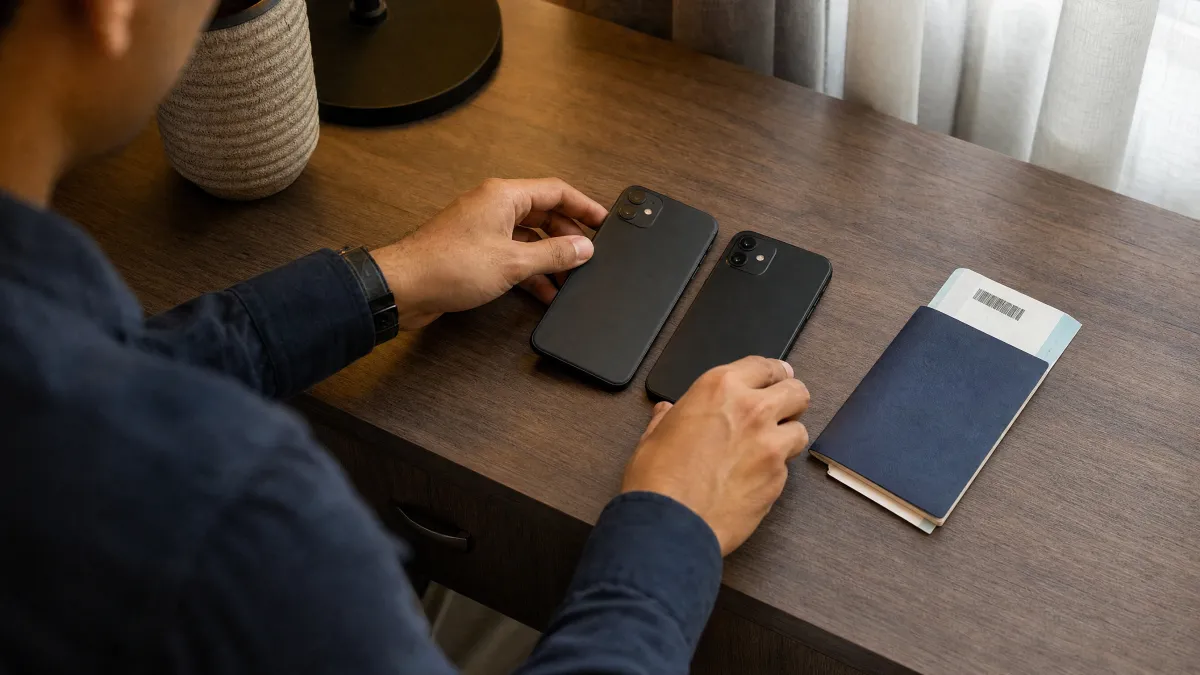
The FAQ notes that a limited number of plans may allow one more scan on the same phone while the plan is valid. Do not assume yours is one of them. Check your plan details and order email first.
Whether a transfer is possible depends on what the plan provider supports, not on how new or capable your phones are. Your order instructions are the best guide for your specific plan.
The main risk is to your unused data. Deleting the eSIM or wiping the phone before the plan is resolved can end the plan before you use what you paid for. If you are unsure what happened to an eSIM, read our guide on what to do after deleting a travel eSIM.
Plan Not Installed Yet? How to Transfer eSIM to Another Phone the Easy Way
If you bought a plan but never scanned the QR code, nothing needs transferring. Install it directly on the phone you will travel with. Do not scan it on the old phone just to test it, because that can use up the install.
Check the new phone first
Before you install, confirm two things. The phone must support eSIM, and it must be carrier-unlocked. A phone locked to your home carrier may refuse a travel eSIM. Use the eSIM compatibility checker if you are unsure.
Install on iPhone
- Connect to reliable Wi-Fi.
- Open Settings > Cellular (or Mobile Service) > Add eSIM.
- Choose Use QR Code and scan the code from your order, or enter the details manually.
- Label the line something clear, such as "Travel".
Install on Android
- Connect to reliable Wi-Fi.
- Open Settings > Connections > SIM manager, or Settings > Network & internet > SIMs.
- Tap Add eSIM (or Add mobile plan) and scan the QR code.
- Rename the line so you can tell it apart from your home SIM.
These menu paths are examples. Labels vary by model and software version, and the instructions in your order email take priority over them. Install before departure, over Wi-Fi.
When a plan's validity starts depends on the plan. Some start when the eSIM is installed. Others start on the first connection in the destination. Read your plan details before you decide when to scan. Our explainer on installing your eSIM before travel covers the trade-off.
Already Installed? How to Transfer My eSIM to Another Phone
This is the hard case. Whether it works depends on the provider, not on the phones. Treat the phone feature as a possibility, not a promise.
This article is the general overview for travel plans. Separate guides go deeper on specific phone pairings, including moving from Android to a new iPhone and changing phones in the middle of a trip.
Same-platform transfers in brief
On iPhone, Apple's Quick Transfer needs provider support, both iPhones nearby with Bluetooth on, and access to the unlocked old iPhone. The plan then deactivates on the old phone when it activates on the new one.
On Android, Google says automatic transfer needs Android 12 or later on both phones, current Google Play services and a screen lock. If the new phone does not detect the eSIM, Google directs you to the provider. For a travel plan, that means the seller.
Moving between iPhone and Android
Do not assume the built-in tools will work across platforms. Follow your order instructions, or ask support. Do not delete the old profile hoping it will free one up.
If the transfer fails
Stop and leave the old eSIM in place. Do not delete it, reset the phone or retry repeatedly. Our guide on eSIM transfer not working before a trip walks through what to check. Then contact support with your order ID and details of both phones.
If the old phone is broken, lost or stolen, you cannot use its transfer menu at all. Contact support using your order email and do not wait until you land.
How to Avoid Losing Unused Data When You Swap Phones
Most lost data comes from timing mistakes, not technical limits. These habits help protect what you paid for:
- Do not delete a working eSIM. Turn the line off between trips instead. Apple notes that after you delete an eSIM, you need a new one from your provider.
- Install on the phone you will carry. If your upgrade lands close to your trip, consider buying and installing the plan after the change.
- Save your order details outside the old phone. Keep the order email, order ID and installation details where you can reach them from the new device.
- Check validity rules. Some plans count down from installation. Others start on the first connection abroad. Know which yours is before you install.
- Do not count on a backup. Whether a phone backup restores an eSIM depends on the provider's instructions. Check your order details before you rely on one.
Hotspot sharing, speeds, top-ups and whether a plan includes a phone number all depend on the plan. Check the plan details before you assume any of them.
Also decide how much data you actually need before you buy. Maps and messaging use little, while video calls and streaming use much more. Pick the plan size from your own habits and the plan details, not from a guess.
Before You Wipe or Trade In the Old Phone
Apple says to erase eSIMs when you sell, trade in or give away a phone. See Apple's guidance on removing an eSIM. Do that only after the plan has been transferred or the situation is resolved.
- Confirm the plan status. Know whether the eSIM is unused, partly used or finished.
- Confirm the new phone works. Check that mobile data runs on the travel line, not just Wi-Fi.
- Keep the old phone until the trip ends if the plan is still active and you have not confirmed it moved.
- Check data roaming. The exact setting depends on the plan and phone, so follow your order instructions. In general, data roaming is turned on for the travel eSIM line only, and kept off on your home line.
- Erase last. Erase the old phone only when you are ready to hand it over, and remove any finished eSIM profiles during that erase.
Timing a Phone Change Before Departure: Checklist
Use this short list if a new phone is arriving before your flight:
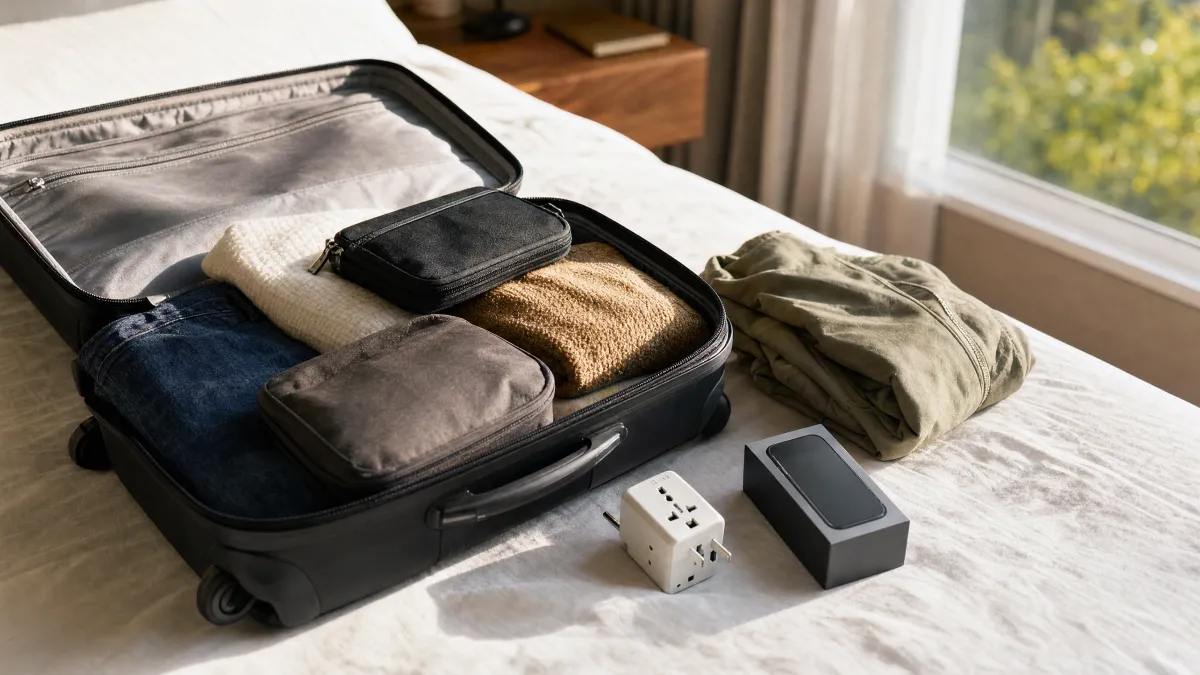
- Confirm the new phone supports eSIM and is carrier-unlocked.
- Update software on both phones.
- Set up the new phone on reliable Wi-Fi well before you fly, so you have time to fix problems.
- Check whether your eSIM QR code is still unused.
- If it is unused, install it on the new phone before departure.
- If it is already installed, read the order instructions and ask support before removing anything.
- Keep the home line active for calls and texts if you need them, and use the travel line for data.
- Test mobile data on the new phone before you erase or hand over the old one.
If you have not bought a plan yet, wait until the new phone is in your hands. Then browse live options for your trip here:
Frequently Asked Questions
Can you transfer eSIM from one phone to another?
Sometimes, but not usually with a travel plan. Phone transfer tools work only when the provider supports them. For an installed eSIM.site plan, assume the device is fixed and install it once on the phone you will carry.
Can I transfer my eSIM to another phone if I bought it for a trip?
Do not assume so. If you have not scanned the QR code, install it on the new phone. If it is already installed, check your order instructions and contact support before you delete or erase anything.
How do I transfer an eSIM to a new phone?
On iPhone, look under Settings > Cellular (or Mobile Service) > Add eSIM for a nearby-iPhone transfer option. On Android, check Settings > Connections or Network & internet for SIM settings. If your provider does not support transfer, these options may not appear or may fail. Labels vary by model.
What happens to my data if I delete the eSIM on my old phone?
You may lose the remaining data, because you cannot count on adding the plan back. A few plans may allow one more scan on the same phone while valid, so check your plan details and order email before acting.
Can I scan the same QR code on my new phone?
If the code has never been scanned, yes, install it on the new phone. If it was already installed on another phone, do not expect a second phone to work. Check your order instructions and contact support first.
Should I buy a travel eSIM before or after upgrading my phone?
After, if the timing allows. Buying and installing on the phone you will actually carry avoids the transfer problem. Confirm the new phone is eSIM-compatible and unlocked first.